
How to remove background from image online for free
Removing a background from an image online is free, fast, and in most cases takes under 10 seconds. Here’s exactly how to do it using ShivamAI Tools, and a few things worth knowing before you start.
Why background removal matters (and when you actually need it)
Product photos with cluttered backgrounds don’t sell. A headshot in front of a messy wall looks amateur on a LinkedIn banner. A logo with a white box around it looks broken on a colored website header.
Background removal fixes all of this. And the AI doing it today is shockingly accurate, even on completely free tools.
The fastest way to remove a background from an image online
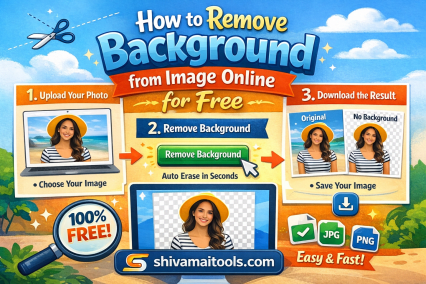
Go to shivamaitools.com Upload your image. Download the result. Done.
That’s it for most cases. The tool uses AI to detect the subject, strips the background, and gives you a PNG with a transparent background in about 3 seconds. Free users get a lower-resolution download (around 0.25 megapixels). If you need the full resolution, you pay per image or subscribe.
For product photos, portraits, and logos, remove.bg’s accuracy is excellent. It handles hair, fur, and fine edges better than most paid tools from 5 years ago.
What is ShivamAI Tools?
ShivamAI Tools (shivamaitools.com) is a free online AI toolkit with a background remover built in. No account needed. No watermark on downloads. No hidden paywall after the first image.
You upload your image, the AI detects the subject, strips the background, and hands you back a clean PNG with a transparent background. The whole thing takes 3 to 5 seconds for a standard photo.
It handles portraits, product shots, logos, and even tricky cases like hair and fur better than you’d expect from a free browser tool.
Step-by-step: how to remove a background using ShivamAI Tools
- Go to shivamaitools.com
- Find the “Remove Background” tool from the homepage
- Click “Upload Image” or drag your photo directly onto the upload area
- Wait 3 to 5 seconds while the AI processes your image
- Preview the result. Check the edges, especially around hair or fine details
- Click “Download” to save your transparent PNG
That’s the whole process. No sign-up form. No credit card page halfway through.
If any edges look rough, use the manual brush to touch up missed spots before downloading. It’s precise enough for most fixes.
Step-by-step: removing a background on mobile using ShivamAI Tools
The tool works in mobile browsers too, which most people don’t bother to check.
- Open shivamaitools.com in Safari or Chrome on your phone
- Tap the “Remove Background” tool
- Tap “Upload Image” and choose a photo from your camera roll
- Wait for processing (slightly longer on mobile, usually under 10 seconds)
- Tap “Download” to save the PNG to your device
Works on both iPhone and Android without installing anything.
What "transparent background" actually means
When you remove a background, the empty space becomes transparent, not white. That distinction matters more than most people realize.
A transparent PNG will show whatever surface is behind it when you place it on a website, a slide, or another design. A white JPG will show a white box even on colored backgrounds, which looks broken immediately.
Always download as PNG after background removal. JPG doesn’t support transparency, so if you save as JPG, the background comes back white.
Portraits and headshots. Clean edges around faces, shoulders, and even detailed hair. Consistent results on standard portrait photography.
Product photos. White-background product shots are the easiest case for any AI remover. ShivamAI Tools processes these cleanly, which makes it practical for e-commerce product images, catalog photos, and marketplace listings.
Logos and graphics. Simple shapes with clear outlines process quickly and come out with tight, accurate edges.
Animals and pets. Fur is hard. Short fur on a contrasting background comes out well. Long or wispy fur against a complex background takes a bit of manual touch-up, but the AI gets most of it right.
When it gets harder (and what to do)
AI background removers, including this one, struggle on a specific set of image types. Worth knowing before you start.
Glass and transparent objects. A perfume bottle, a wine glass, a clear phone case. The AI often can’t tell what to keep and what to remove because the object lets the background show through. For these, manual selection in a desktop editor is more reliable.
Low-contrast subjects. A white mug on a white table. A beige product on a cream background. The AI doesn’t see a clear edge, so it guesses, and the guesses get messy. Reshoot against a high-contrast background if you can.
Fine hair against a busy background. A person with curly or flyaway hair standing in front of trees or a detailed wall. The AI catches most of it, but the edges need manual cleanup. Use the touch-up brush on those areas before downloading.
Detailed illustrations with busy borders. If the artwork’s edges blend intentionally into the background, the AI has no reliable signal for where to cut. Manual masking is the only clean fix
Quick tips that save time
Start with the highest resolution image you have. The AI reads edge detail from pixel data. A sharp, high-res photo gives it more to work with.
Shoot against a clean background when you can. A plain wall, a white sheet, or a lightbox gives the AI a clear signal. You’ll get cleaner results with less touch-up needed.
Check edges at 100% zoom before you use the image anywhere. What looks clean at thumbnail size often has jagged spots or missing pixels when you zoom in. Catch those before the image goes live.
PNG for transparent backgrounds, always. If you’re placing the image on a colored surface, slide, or website, PNG is the only format that keeps the transparency intact.
Use the manual brush for the last 5%. The AI handles 95% of the work. The brush handles the rest. Don’t skip it on anything important.
Common use cases where this actually saves time
E-commerce product listings. Marketplaces like Amazon and Flipkart require white or clean backgrounds on product images. Shooting on white and running through the remover is faster than hiring a photo editor for every SKU.
LinkedIn and professional headshots. Drop your headshot onto a clean or branded background without booking a studio. Takes 2 minutes.
Presentations and pitch decks. Cut out a product, a diagram, or a photo and place it directly on a slide with no awkward white box behind it.
Social media graphics. Place a subject on a branded color, a gradient, or a custom scene. Useful for Instagram posts, thumbnails, and story graphics.
WhatsApp and messaging stickers. Cut out a photo of yourself or a pet, save as PNG, and use it as a sticker. The transparent background makes it work on any chat background color.
Why free doesn't mean worse here
Paid background removal tools charge because of volume, API access, or integrations. For a single image processed in a browser, the underlying AI is largely the same across free and paid tools at this point.
ShivamAI Tools gives you that same AI output without the pricing page. For occasional use, that’s all most people need.
The difference shows up when you’re processing hundreds of images a day or need API access for an automated workflow. For everything else, the free browser tool does the job
The one thing most people get wrong
They save as JPG.
You process the image, the background disappears, it looks great in the preview. Then you download, open the file, and there’s a white background again. That’s not a bug. JPG doesn’t support transparency. The transparent areas get filled with white on export.
Save as PNG. Every time. It’s the only format that keeps the transparent background intact through download and reuse.
background remover free Frequently
Asked Questions
Go to shivamaitools.com, open the Remove Background tool, upload your image, and download the result as a PNG. The AI processes it in 3 to 5 seconds. No account or payment needed.
Yes. No sign-up, no watermark, no paywall after a few images. Upload your photo and download the transparent PNG at no cost.
You can upload JPG, PNG, and WEBP images. Always download your result as PNG to keep the transparent background intact. JPG doesn't support transparency.
Yes. Open shivamaitools.com in any mobile browser, upload a photo from your camera roll, and download the PNG directly to your device. No app install needed.
You likely saved it as JPG. JPG doesn't support transparency, so the empty areas fill white on export. Download as PNG and the transparent background stays intact.
Yes. It handles product photos, logos, portraits, and pet photos well. For best results, shoot your subject against a high-contrast background before uploading.

Shivam AI Tools provides simple, fast, and reliable online calculators to help users plan better and make informed decisions. Our tools are designed for ease of use and educational purposes only
Our Services Tools
Our Services Tools
Contact Us
Best Development Company Shivam Software Raipur Chhattisgarh
+91 9669251442
shivampandey22798@gmail.com